

GTA VI / GUIDEDISTRICT
GTA 6 launch checklist: account, storage and downloads
On this page
A smooth first session starts with a few checks you can finish before launch: the right account, enough free space, working downloads and a charged controller. Use the checklist on this page to keep track. It is saved in this browser, separately from your map progress.

Your launch checklist
Your changes could not be saved. Download a backup before closing this page.
Start with the account you will use
Open your console with the account associated with your purchase. Check that you can sign in without hunting for an old password at the last minute. If someone else shares the console, make sure you know which profile you intend to play on.
Keep your purchase confirmation somewhere easy to find. You do not need to paste a receipt, payment information or a password into GuideDistrict. A checked box on this page is simply your reminder; it does not verify an order.
Make room before the download opens
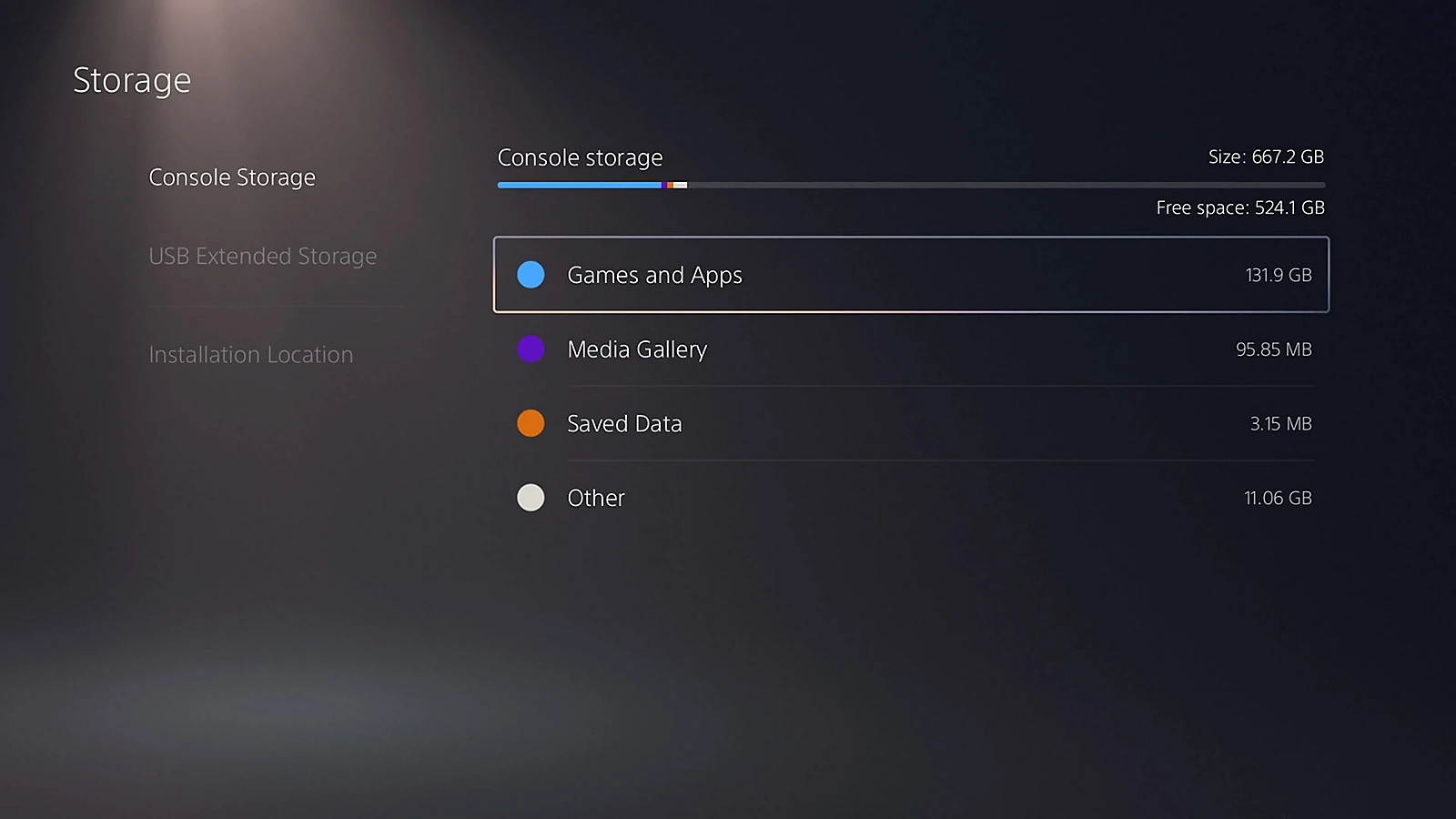
Check the free space on the destination drive, not just the console’s advertised capacity. Rockstar lists up to 212 GB required, depending on the device. Before deleting anything, distinguish installed games, captures and saved progress.
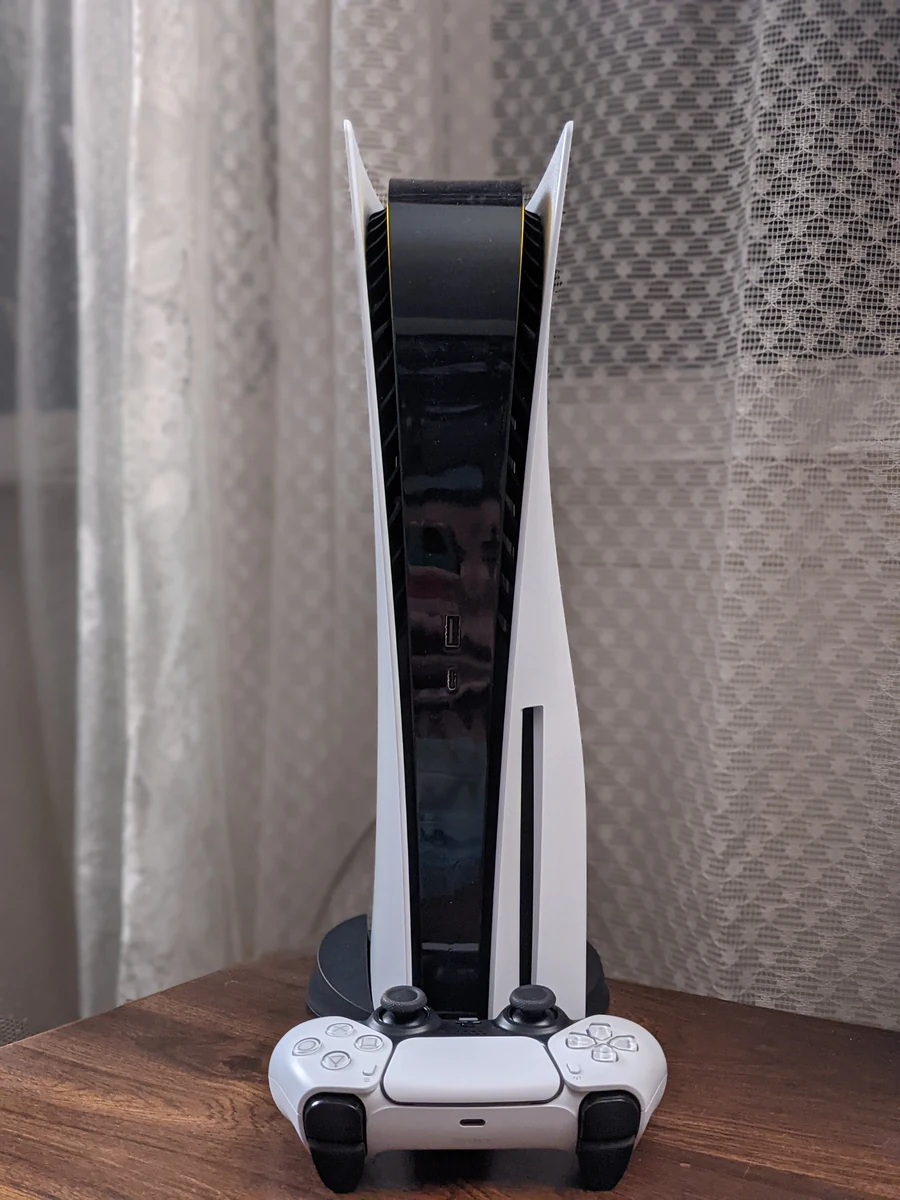
On PS5, free space is shown in Settings → Storage. PS5 games kept on USB extended storage must be moved back to console storage or a compatible M.2 SSD before play. Moving an older game can be more useful than deleting it and downloading it again later.
Prepare your first evening
Check the preload schedule and leave time for the transfer. Charge the controller, try your headset and choose a comfortable display setting now. These small checks are easier to handle before you want to start playing.
If you already use the map, export a backup of your profile before changing browser or device. Your launch checklist is separate and is not included in that file. Keep the game’s own saves, your map notes and this preparation list clearly apart.

Sources
Useful next steps
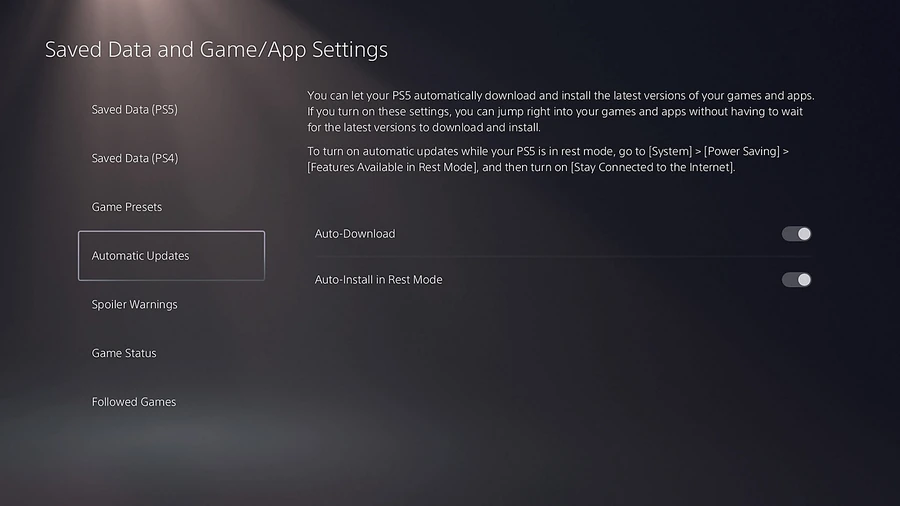
GTA 6 preload times for PS5 and Xbox, automatic download checks, storage preparation and what to do if the download has not appeared.
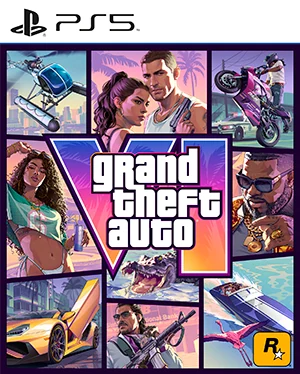
Redeem a GTA 6 code through the official store, check the account and find the right support for missing codes or purchases.