

GTA VI / GUIDEDISTRICT
Save and restore your progress
On this page
Your map profile lives in this browser, not in a cloud account or a GTA 6 save. A downloaded JSON backup is the way to carry your favourites, checkmarks, notes, private pins and route to another browser or device.
Download the profile you mean to keep
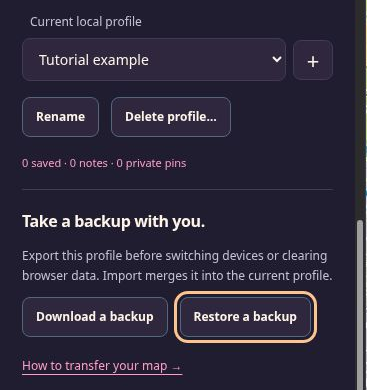
Open My progress and check Current local profile. Choose Download a backup. Find the downloaded JSON file and give it a recognisable filename, such as “coast-notes-2026-11-07.json”. Keep the .json extension. If you have several profiles, select and export each one separately; one download does not contain them all.
The file contains private notes and pin coordinates. Store it somewhere you can retrieve on the destination device. The separate launch checklist is not included. A map backup also cannot restore a console game save: these are different kinds of progress.
Restore into a new profile when in doubt
On the destination, open the map and My progress. Use + to create a profile with a clear name, then choose Restore a backup. Select the JSON file, read the merge summary and confirm with Merge backup. Import does not automatically create a separate profile from the filename or saved profile name.
A new, empty profile lets you inspect the import without combining it with your current notes. Afterward, check a familiar favourite, one note and the route order. If you deliberately import into an existing profile, download that profile first so you can preserve its earlier state.
Know which information wins
Import combines favourites and checkmarks without duplicates. Existing route stops stay first, followed by new imported stops in their imported order. If both files contain a note for the same place, the current profile’s note wins; the two texts are not joined. For a repeated private pin identifier, the current pin’s name and coordinates win too.
Valid old identifiers are retained even when their place is absent from today’s catalogue. A combined route over 100 stops is rejected instead of silently shortened. A rejected or invalid file leaves the profile unchanged. See import troubleshooting if the summary does not appear.
Check storage before leaving
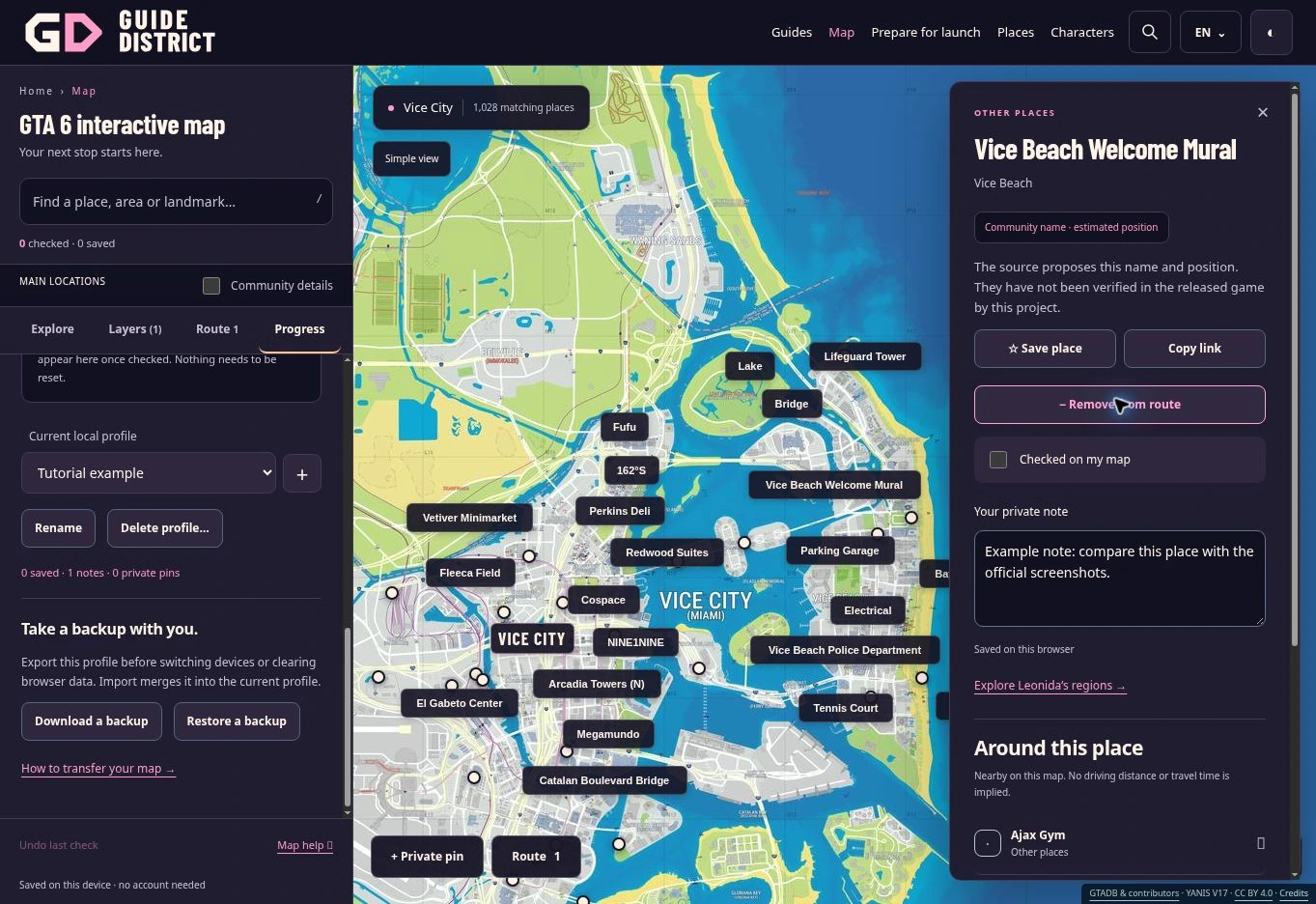
Successful import should report that the backup was merged and saved. If it says the merge exists only in memory, immediately download the merged profile before closing or reloading. Do the same whenever browser storage is full or unavailable.
A file named gta6-map-recovery-raw.json is a separate raw recovery copy, not a normal import backup. Keep it unchanged if stored data cannot be read. Do not clear browser data as the first repair step.
When the map changes
New backups retain the base-map version for your private pins and support the new discovery IDs. Older backups remain readable. If a future map uses different coordinates, private pins from the older map are kept in your backup rather than silently moved to a new location.
Keep an export before changing devices or before a major map replacement. Unknown place IDs remain saved even when they are not in the current catalogue. Sharing a public map view does not transfer your notes, favourites or checkmarks; use export and import for that.