

GTA VI / GUIDEDISTRICT
How to use the map
On this page
Use the map to collect places you want to look at, keep a short note and decide what to check next. Start with one region or one name; you can add detail as you need it.
Start with the overview
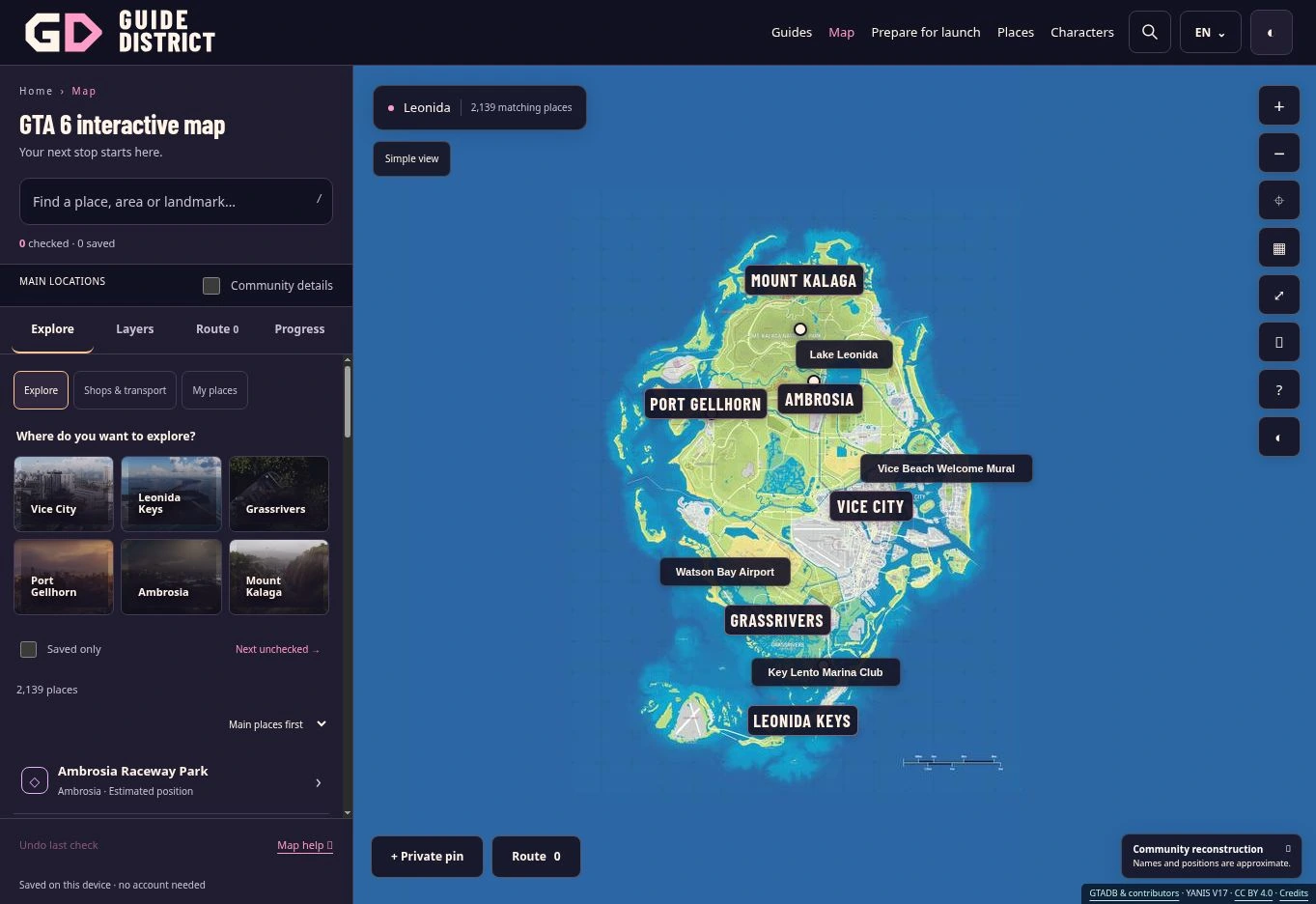
Open the interactive map. The wide view gives priority to six regions and a selection of ten major places, rather than putting every label on screen. Zoom in to reveal more named places. Labels adapt to available space, so a name missing from the image is not necessarily missing from the catalogue.
The Places list gives access to all 2,139 community entries, subject to your filters. Choose Show more places to continue through the results. Enable Community details when you want the detailed markers; nearby points may appear as a numbered group until you zoom in.
Try a first place
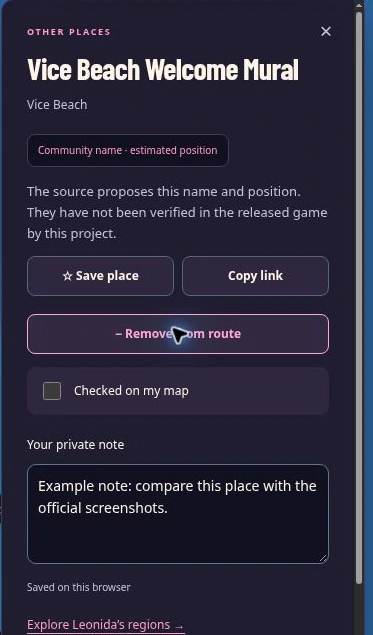
Search for Lake Leonida, then open its result. Read the position notice before treating the point as a destination: this is a community estimate. Choose ☆ Save place if you want to return to the card. Add a note such as “Compare the shore with the source image” so you remember why you kept it.
Use + Add to route only when you want that place in an ordered list. Saving a favourite and adding a route stop are separate actions. The route guide explains how to reorder stops; the search guide helps when a name produces no results.
Give your checkmarks a meaning
Checked on my map is your own tracking choice. You could use it for “I have reviewed this card”; it does not record a visit in GTA 6 or change a game save. Undo last check reverses the most recent check action in the current session.
Notes, favourites and the route belong to the selected profile in My progress. They save in this browser when storage is available. Before changing devices, follow the backup steps; there is no cloud sync.
Keep the map comfortable to use
On a phone, open ☷ Places & filters to reach the list and tabs. Selecting a place closes the panel and opens its card. Close the card when you need more room. On a keyboard, / focuses search while you are not typing; Escape closes a panel or cancels pin placement when no dialog is open.
Simple view returns to the full-map overview and clears the active filters. It keeps your saved places, notes, checkmarks and route.
Find your next stop faster
Explorer offers quick views for all places, shops and transport, and My places. My places brings together your favourites, notes, private pins, checkmarks and route stops. Choose a region to narrow the list, or sort by name or proximity to the centre of the map.
Open a card to see nearby places. Their order describes proximity on the current reconstruction; it does not give a driving distance. The Progress tab groups your checklist by category and can open the next unchecked point. These are your map checkmarks, not GTA 6’s completion percentage.